KeePass Notes Search Plugin (Innerhalb der Kommentare suchen / search within notes field)
Weil ich die Funktion zum Suchen innerhalb des KeePass Kommentar-Feldes dringend benötigte habe ich mich 2023 mit ChatGPT 3.5 und 2026 mit Gemini 3 Flash hingesetzt und ein Plugin für KeePass geschrieben mit dem man in den Kommentaren nach einem Suchtext suchen kann und dieser gelb markiert wird wenn er gefunden wurde.
English version below!
KeePass NotesSearch Plugin Version 2.1 download:
| NotesSearch Plugin (NotesSearchPlugin.dll & NotesSearchPlugin.plgx) | |
| Verschlüsselte Version falls ihr Probleme habt die DLL/PLGX durch eure Firewall zu bekommen. Passwort zur Entschlüsselung: notessearch | |
| NotesSearchPlugin.cs & AssemblyInfo.cs | |
| MD5 Checksum Infos für alle downloads auf meinem GitHub Account |
>> Das Plugin ist seit 07.09.2023 auch auf der offiziellen KeePass Plugins Homepage von Dominik Reichl gelistet.
Release Notes
V2.1 (21.07.2026)
>> Suche nach dem vorherigen Eintrag der dem Suchtext entspricht (Alt-X)
>> Aktualisierung der KeePass-Passwort-Chronik des aktuellen Eintrags
>> Zählen der Treffer für den Suchtext und Anzeige in der untersten Zeile des Fensters „Match at Position X | Match Y of Z [last match]“
>> Wechsel von SharpDevelop zu Microsoft Visual Studio Community Edition IDE (Juli 2026 / V18.8.0)
V2.0 (30.03.2026)
>> Umbau der Benutzeroberfläche (UI) und neue Funktion (Copy) hinzugefügt, Schriftart geändert
V1.6 (27.04.2024)
>> Fehler behoben (System.NullReferenceException: Der Objektverweis wurde nicht auf eine Objektinstanz festgelegt bei NotesSearchPlugin.NotesSearchPluginExt.IsNoteTextChanged()) nach Ablauf des Timers zum automatischen schließen (Optionen –> Sicherheit –> Arbeitsfläche nach KeePass-Inaktivität sperren (Sekunden))
Beachten bitte dass eine Änderung der Notizen innerhalb des NotesSearch-Plugins NICHT gespeichert werden wenn das Plugin durch das Hauptprogramm beendet wird, also der Timer abgelaufen ist!
>> Downloadpakete (zip-files) enthalten die Version 1.6 als DLL (NotesSearchPlugin.dll) und zusätzlich als PLGX-Datei (NotesSearchPlugin.plgx) für besser Unterstützung von „custom builds“ z.B. unter Linux
Infos zu PLGX auf der KeePass-Homepage
V1.5 (20.04.2024)
>> Bei Änderungen in den Notizen wird der Button „Save (Alt-Q)“ rot um darauf hinzuweisen diese zu speichern
>> Wenn Änderungen in den Notizen gemacht wurden und das Plugin geschlossen wird kommt eine Abfrage ob die Änderungen gespeichert werden sollen (Ja, Nein, Abbrechen)
V1.4 (24.01.2024)
>> Speichern von Änderungen hinzugefügt –> Save (Alt-Q)
V1.3 (13.10.2023)
>> URLs werden im Standardbrowser geöffnet wenn man sie anklickt
V1.2 (25.09.2023)
>> Search-as-you-type hinzugefügt (es wird sofort gesucht sobald Suchtext eingeben wird)
bitte beachten: wird der Suchtext in einer URL/Link gefunden dann wird die Zeile ganz oben angezeigt jedoch nicht rot markiert
V1.1 (14.09.2023)
>> Schriftartgröße im Kommentarfeld um 15% erhöht und das Suchfeld um 50%
>> entfernen von Leerzeichen vor und hinter dem Suchtext (trim)
V1.0 (07.09.2023)
>> Erster release
Zur Installation einfach beide Dateien NotesSearchPlugin.dll und NotesSearchPlugin.plgx wie auf der KeePass-Seite beschrieben importieren (Danke an Dominik Reichl) bzw. ins KeePass-Plugins Verzeichnis kopieren. Bei mir z.B. „C:\Program Files (x86)\KeePass Password Safe 2\Plugins“
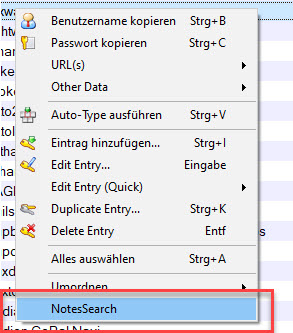
Nachdem KeePass neu gestartet wurde kann man über einen Rechts-Klick auf einen Eintrag
im Menü „NotesSearch“ auswählen …
Es erscheint dieses Suchfenster …
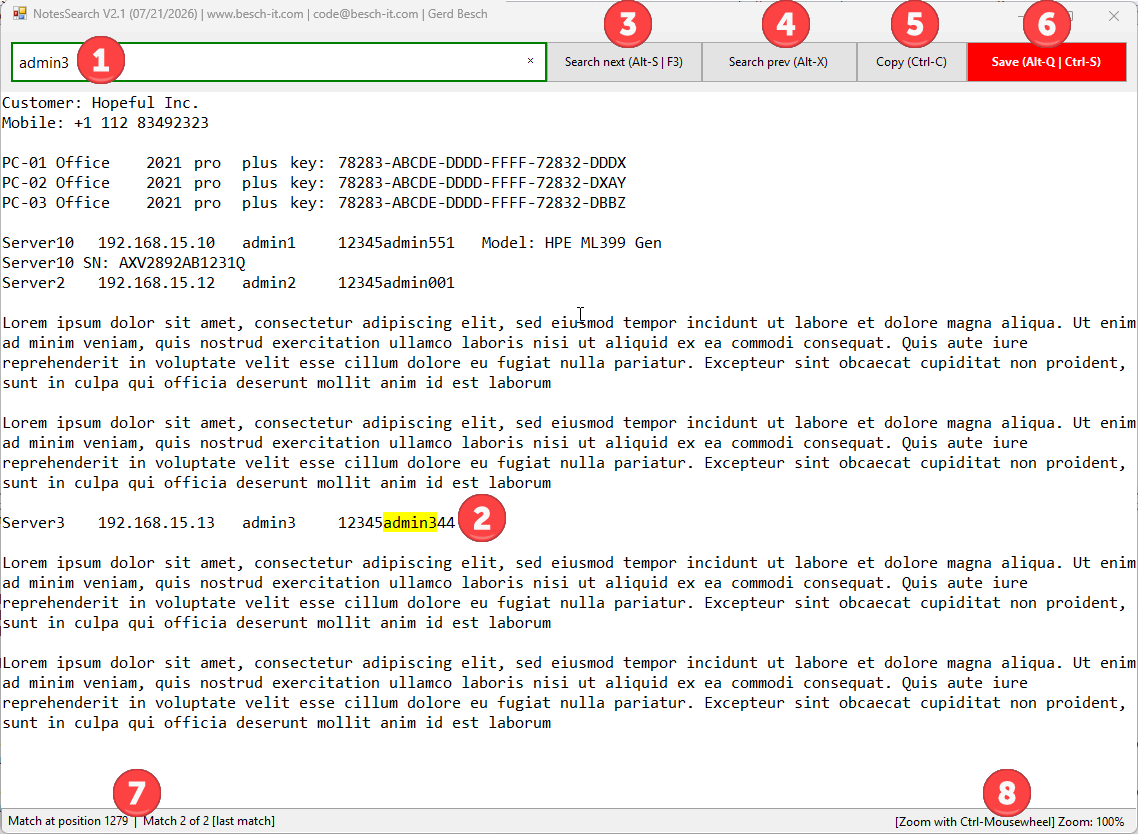
Sobald du die ersten Zeichen des Suchtextes (1) eingegeben hast wird die gefundene Zeile angezeigt (search-as-you-type) und gelb (2) markiert. Wenn du das erste Vorkommen des Suchtextes finden willst geht das über Tastenkombination Alt-W.
Über den Button „Search next (Alt-S | F3)“ (3) springst du zum nächsten Vorkommen des Suchtextes der dann ebenfalls gelb (2) markiert wird. Über „Search prev (Alt-X)“ (4) kannst du auch rückwärts suchen. Wenn kein Suchtext gefunden wird erscheint in der untersten Zeile des Fensters (7) die Meldung „No match | No matches“ ansonsten beginnt die Suche wieder von ganz oben und du siehts wie viele Treffer in den Notizen vorhanden sind „Match Y of Z“ oder beim letzten Treffer [last match].
Wenn ein Text markiert wird ändert sich die Farbe des Buttons „Copy (Ctrl-C)“ (5) in grün und bei einem klick auf den Button wird der markierte Text in die Zwischenablage kopiert, natürlich genau so wenn du die Tastenkombination Ctrl-C (Strg-C) drückst.
Wenn du Änderungen in den Notizen vorgenommen hast ändert sich die Farbe des Buttons
„Save (Alt-Q | Ctrl-S)“ (6) in rot, du kannst die Änderungen entweder mit einem Klick auf diesen Button speichern oder beim Schließen des Plugins (über das „X“ oben rechts bzw. die ESC-Taste) die Änderungen speichern oder verwerfen.
Ab Version 2.1 wird bei einer Änderung der Notizen und dem Speichern automatisch ein Eintrag in der KeePass-Chronik angelegt. Du kannst also, falls du eine Änderung rückgängig machen willst, dies über die eingebauten KeePass Funktionen der Chronik erledigen.
ACHTUNG:
>> Bitte beachte dass alle Informationen die darüber in der Zwischenablage landen darin verbleiben bis diese überschrieben/gelöscht werden!
>> Sie können innerhalb des Kommentarfelds auch neuen Text eingeben, dieser wird jedoch nur gespeichert wenn sie auf „Save (Alt-Q | Ctrl-S)“ klicken oder über die Tastenkombination Alt-Q oder Ctrl-S die Änderung speichern, ansonsten wir die Änderung verworfen!
Wenn du den Text der Notizen vergrößern oder verkleinern willst halte die Ctrl-Taste (deutsche Tastatur: Strg-Taste) fest und drehe am Mausrad, damit wird die Schrift in 10%-Schritten vergrößert bzw. verkleinert. Zoom-Info am unteren Rand des Fensters (8). Ein Mausklick auf diesen Text setzt die Schriftgröße wieder auf 100% zurück.
Zum Beenden einfach oben rechts mit „X“ schließen oder die ESC-Taste drücken.
Tastaturbelegung (Hotkeys)
| Tastenkombination (Ctrl = Strg) | Funktion |
| Alt-W | Erstes Vorkommen des Suchtextes finden |
| Ctrl-F | Zurück ins Suchfeld springen |
| Alt-S oder F3 | Nächsten Treffer suchen |
| Alt-X | Vorherigen Treffer suchen |
| Alt-Q oder Ctrl-S | Änderungen speichern |
| Ctrl-C | Markierten Text in Zwischenablage kopieren |
| ESC | NotesSearch beenden |
Viel Spaß mit dem Plugin, ich hoffe es hilft dem einen oder anderen 🙂
English
Because I urgently needed the function to search within the KeePass comment field, I sat down in 2023 with ChatGPT 3.5 and in 2026 with Gemini 3 Flash and wrote a plugin for KeePass that allows you to search for a search term in the comments and highlight it in yellow when it is found.
KeePass NotesSearch Plugin Version 2.1 download:
| NotesSearch Plugin (NotesSearchPlugin.dll & NotesSearchPlugin.plgx) | |
| Encrypted version just in case you have got trouble getting the dll through your firewall. Decryption password: notessearch | |
| NotesSearchPlugin.cs & AssemblyInfo.cs | |
| MD5 Checksum Infos for all downloads on my GitHub Account |
>> The plugin is also listed on the official KeePass Plugins Homepage of Dominik Reichl since 09/07/2023.
Release Notes
V2.1 (07/21/2026)
>> Search for previous entry matching the searchtext (Alt-X)
>> Update KeePass password history of current entry
>> Count number of searchtext-matches and show it on the bottom line of the window „Match at position X | Match Y of Z [last match]“
>> Switched from SharpDevelop to Microsoft Visual Studio Community Edition IDE (July 2026 / V18.8.0)
V2.0 (03/30/2026)
>> User Interface (UI) redesigned, new Copy function added, font changed
V1.6 (04/27/2024)
>> Bug fixed (System.NullReferenceException: The object reference was not set to an object instance in NotesSearchPlugin.NotesSearchPluginExt.IsNoteTextChanged()) after the automatic close timer expired (Options –> Security –> Lock workspace after KeePass inactivity (seconds))
Please be aware that changes to the notes within the NotesSearch plugin will NOT be saved if the plugin is closed by the main program, i.e. the timer has expired!
>> Download packages (zip files) contain version 1.6 as a DLL (NotesSearchPlugin.dll) and additionally as a PLGX file (NotesSearchPlugin.plgx) for better support of „custom builds“ e.g. under Linux
Info about PLGX on KeePass-Homepage
V1.5 (04/20/2024)
>> If you changed the notes the button „Save (Alt-Q)“ will change it´s color to red just to remind you to save your changes
>> If you made any changes and you close the plugin you are asked if you want to save it (Yes, No, Cancel)
V1.4 (01/24/2024)
>> Added saving changes –> Save (Alt-Q)
V1.3 (10/13/2023)
>> URLs are opened in the default browser when clicked
V1.2 (09/25/2023)
>> search-as-you-type added (the searchtext is search as soon as you start typing)
please be aware: if the searchtext is found within a URL / link the text will be shown on the very top of the window but it will not be marked in red
V1.1 (09/14/2023)
>> increase font size of notes field by 15% and the search-text-field by 50%
>> remove any whitespace from the search-text (right/left trim)
V1.0 (09/07/2023)
>> Initial release
To install, simply import or copy both, the NotesSearchPlugin.dll & NotesSearchPlugin.plgx files as described on the KeePass website (thanks to Dominik Reichl) into the KeePass plugins directory. On my PC e.g. „C:\Program Files (x86)\KeePass Password Safe 2\Plugins“
After restarting KeePass, you can select „NotesSearch“ from the context menu by right-clicking on an entry …
This will open the search window …
s
As soon as you enter the first few characters of the search text (1), the matching line is displayed (search-as-you-type) and highlighted in yellow (2). To find the first occurrence of the search text, use the keyboard shortcut Alt+W.
Use the „Search next (Alt+S | F3)“ button (3) to jump to the next occurrence of the search text, which is also highlighted in yellow (2). You can also search backwards using the „Search prev (Alt-X)“ button (4). If the search text is not found, the message „No match | No matches“ appears at the bottom (7) otherwise the search starts from the top and you can see how many matches (Match Y of Z) of the search text are within the notes and if this is the [last match].
When text is selected, the „Copy (Ctrl+C)“ button (5) changes color to green, and clicking the button copies the selected text to the clipboard, as does pressing Ctrl+C.
If you make changes to the notes, the „Save (Alt-Q | Ctrl-S)“ button (6) will change to red. You can save the changes either by clicking this button or by closing the plugin (using the „X“ in the upper right corner or the ESC key).
Starting with version 2.1, an entry is automatically created in the KeePass history whenever the notes are modified and saved. This means that if you wish to undo a change, you can do so using KeePass’s built-in history functions.
ATTENTION:
>> Please note that any information copied to the clipboard will remain there until overwritten or deleted!
>> You can also enter new text within the comment field, but this will only be saved if you click „Save (Alt-Q | Ctrl-S)“ or use the keyboard shortcut Alt-Q or Ctrl-S to save the changes. Otherwise, the changes will be discarded!
To zoom in or out on the notes, hold down the Ctrl key and scroll the mouse wheel. This will increase or decrease the font size in 10% increment. See zoom info at the bottom of the window (8). A mouseclick on this text sets the font size back to 100%.
To exit, simply close the window with the „X“ in the upper right corner or press the ESC key.
Hotkeys (Keyboard shortcuts)
| Keyboard shortcut | Function |
| Alt-W | Search first occurrence |
| Ctrl-F | Jump back into the search field |
| Alt-S oder F3 | Search next occurrence |
| Alt-X | Search previous occurrence |
| Alt-Q oder Ctrl-S | Save changes |
| Ctrl-C | Copy selected text into clipboard |
| ESC | Exit NotesSearch |
Enjoy the plugin; I hope it helps some of you 🙂
Keywords: KeePass, plugin, dll, plgx, search within notes, search notes plugin, search within KeePass notes field, suchen in kommentar, suchen in kommentaren, suchen in KeePass Kommentaren, custom build plgx supported (Linux etc.)
[Čeština]
Protože jsem naléhavě potřeboval funkci vyhledávání v poli komentáře správce hesel KeePass, sedl jsem si v roce 2023 s ChatGPT 3.5 a v roce 2026 s Gemini 3 Flash a napsal plugin pro KeePass, se kterým můžete v komentářích/poznámkách hledat hledaný text, který se po nalezení zvýrazní žlutě.
[Dansk]
Da jeg havde brug for funktionen til at søge i kommentarfeltet i KeePass-passwordmanageren, satte jeg mig i 2023 med ChatGPT 3.5 og i 2026 med Gemini 3 Flash og skrev et plugin til KeePass, hvormed man kan søge efter en søgetekst i kommentarerne/noterne, som markeres med gult, når den findes.
[Ελληνικά]
Επειδή χρειαζόμουν επειγόντως τη λειτουργία αναζήτησης στο πεδίο σχολίων του διαχειριστή κωδικών πρόσβασης KeePass, κάθισα το 2023 με το ChatGPT 3.5 και το 2026 με το Gemini 3 Flash και έγραψα ένα πρόσθετο για το KeePass, με το οποίο μπορείτε να αναζητήσετε κείμενο στα σχόλια/σημειώσεις, το οποίο επισημαίνεται με κίτρινο χρώμα όταν βρεθεί.
[Español]
Debido a que necesitaba urgentemente la función de búsqueda dentro del campo de comentarios del gestor de contraseñas KeePass, me puse a trabajar con ChatGPT 3.5 en 2023 y con Gemini 3 Flash en 2026 y escribí un complemento para KeePass con el que se puede buscar un texto en los comentarios/notas y este se resalta en amarillo cuando se encuentra.
[Eesti]
Kuna vajasin hädasti KeePassi paroolihalduri kommentaarivälja otsingufunktsiooni, istusin 2023. aastal koos ChatGPT 3.5-ga ja 2026. aastal koos Gemini 3 Flashiga ning kirjutasin KeePassi jaoks pistikprogrammi, millega saab kommentaaridest/märkmetest otsida teksti ning see märgistatakse leidmisel kollasega.
[Français]
Parce que j’avais un besoin urgent de la fonction de recherche dans le champ de commentaire du gestionnaire de mots de passe KeePass, je me suis assis avec ChatGPT 3.5 en 2023 et avec Gemini 3 Flash en 2026 et j’ai écrit un plugin pour KeePass avec lequel on peut rechercher un texte dans les commentaires/notes et celui-ci est marqué en jaune lorsqu’il est trouvé.
[Hrvatski]
Budući da mi je hitno trebala funkcija pretraživanja unutar polja za komentare upravitelja lozinkama KeePass, sjeo sam 2023. godine s ChatGPT-om 3.5 i 2026. s Gemini 3 Flashom te napisao dodatak za KeePass pomoću kojeg možete tražiti tekst u komentarima/bilješkama, a koji se označi žuto kada se pronađe.
[Italiano]
Poiché avevo urgente bisogno della funzione di ricerca all’interno del campo dei commenti del gestore di password KeePass, nel 2023 mi sono messo al lavoro con ChatGPT 3.5 e nel 2026 con Gemini 3 Flash e ho scritto un plugin per KeePass con cui è possibile cercare un testo nei commenti/note e questo viene evidenziato in giallo quando viene trovato.
[Latviešu]
Tā kā man steidzami bija nepieciešama meklēšanas funkcija KeePass paroļu pārvaldnieka komentāru laukā, 2023. gadā kopā ar ChatGPT 3.5 un 2026. gadā ar Gemini 3 Flash es apsēdos un uzrakstīju spraudni priekš KeePass, ar kuru komentāros/piezīmēs var meklēt meklēšanas tekstu, kas pēc atrašanas tiek iezīmēts dzeltenā krāsā.
[Magyar]
Mivel sürgősen szükségem volt a KeePass jelszókezelő megjegyzés mezőjén belüli keresési funkcióra, 2023-ban a ChatGPT 3.5-tel, 2026-ban pedig a Gemini 3 Flash-sel leültem, és írtam egy bővítményt a KeePass-hoz, amellyel keresni lehet a keresett szövegre a megjegyzésekben/jegyzetekben, és a találat sárga kiemeléssel jelenik meg.
[Norsk]
Siden jeg hadde et presserende behov for søkefunksjonen i kommentarfeltet til passordbehandleren KeePass, satte jeg meg ned i 2023 med ChatGPT 3.5 og i 2026 med Gemini 3 Flash og skrev en plugin for KeePass som lar deg søke etter tekst i kommentarer/notater, og markerer treffet med gult når det blir funnet.
[Polski]
Ponieważ pilnie potrzebowałem funkcji wyszukiwania w polu komentarza menedżera haseł KeePass, w 2023 roku usiadłem z ChatGPT 3.5, a w 2026 roku z Gemini 3 Flash i napisałem wtyczkę do KeePass, za pomocą której można przeszukiwać komentarze/notatki pod kątem szukanego tekstu, a po jego znalezieniu zostaje on zaznaczony na żółto.
[Slovenščina]
Ker sem nujno potreboval funkcijo iskanja znotraj polja za komentarje upravitelja gesel KeePass, sem se leta 2023 s ChatGPT 3.5 in leta 2026 z Gemini 3 Flash lotil dela in napisal vtičnik za KeePass, s katerim lahko v komentarjih/opombah iščete iskalno besedilo, ki se ob najdbi označi rumeno.
[Suomi]
Koska tarvitsin kiireellisesti hakutoimintoa KeePass-salasananhallinnan kommenttikentän sisällä, istuin alas vuonna 2023 ChatGPT 3.5:n ja vuonna 2026 Gemini 3 Flashin kanssa ja kirjoitin KeePassille liitännäisen, jolla voi hakea hakutekstiä kommenteista/muistiinpanoista siten, että se korostetaan keltaisella, kun se löytyy.
[Svenska]
Eftersom jag var i stort behov av sökfunktionen i kommentarsfältet i lösenordshanteraren KeePass, satte jag mig 2023 med ChatGPT 3.5 och 2026 med Gemini 3 Flash och skrev ett insticksprogram för KeePass. Med detta kan man söka efter text i kommentarerna/anteckningarna, och träffen markeras med gult när den hittas.
[Українська]
Оскільки мені терміново знадобилася функція пошуку в полі коментарів менеджера паролів KeePass, у 2023 році я сів за роботу з ChatGPT 3.5, а у 2026 році з Gemini 3 Flash і написав плагін для KeePass, за допомогою якого можна шукати текст у коментарях/нотатках, і він виділяється жовтим кольором, якщо його знайдено.